
Start Here: Why APK Security Deserves Attention
Android APK Safety Guide2026 Android users have many ways to find new applications for their phones. Most people use Google Play, while others may discover apps through developer websites, alternative stores, or APK download pages. An APK can be a convenient way to install an Android application, but getting one from an unfamiliar place can create avoidable security concerns.
For readers of APKMantri.com.pk, knowing how to examine an APK is just as important as knowing how to install one. A responsible download process means checking the publisher, examining permissions, understanding compatibility, and paying attention to Android security alerts. Google recommends using Google Play when possible and warns that applications from unknown sources can create risks for devices and personal data.
This 2026 guide takes a practical approach to APK safety. Instead of assuming every APK is dangerous or every APK is safe, it explains the checks users can make before putting an unfamiliar application on their phone.
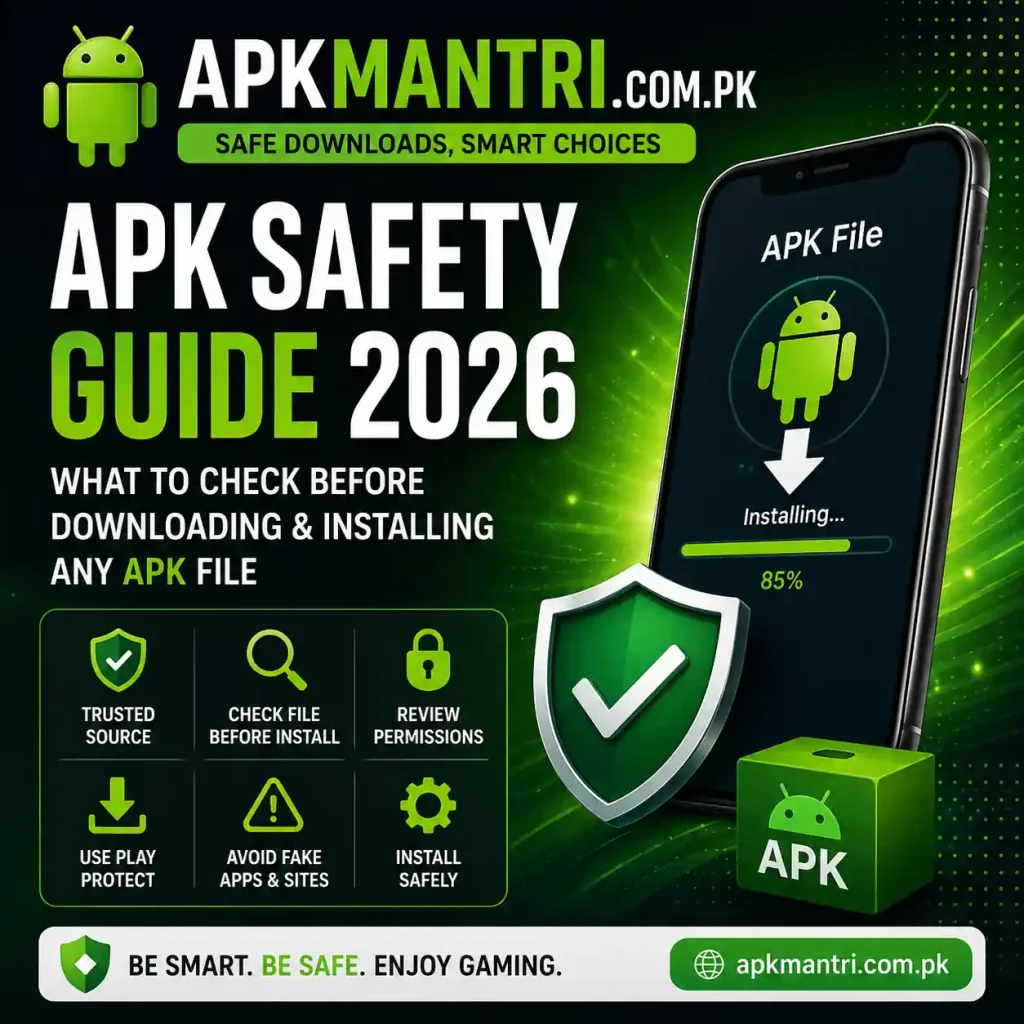
APK Explained in Simple Terms of Android APK Safety Guide2026
An APK, short for Android Package Kit, is a file package used to distribute an Android application.
When an app is provided outside a conventional app marketplace, the user may receive an APK and install it manually. This method is commonly known as sideloading.
The APK format itself is not a sign of malware. The bigger question is whether the file is authentic, unchanged, and obtained from a dependable source. A legitimate application and a harmful application can both be delivered as APK files, so users should evaluate the file and its origin rather than judging it only by its extension.
Why You Should Examine an APK First
An installed application can request access to different parts of your smartphone. Depending on the app, this can include features such as the camera, microphone, contacts, location, files, notifications, or other device functions.
If an application is untrustworthy, excessive or inappropriate access may create privacy and security concerns. Android includes protections such as Google Play Protect, which checks applications and can warn users about potentially harmful software.
However, built in security should not replace common sense. Checking an APK before installation gives you another important layer of protection.
Checkpoint 1: Identify the Download Source
Start by asking where the APK came from.
A recognizable developer website or established distribution channel is generally easier to verify than a random page offering an unexplained file. Be cautious with websites that use misleading buttons, repeated redirects, aggressive advertisements, or alarming messages designed to make you click quickly.
Before downloading, make sure the page clearly identifies the application and provides useful information about its publisher and version.
If you cannot determine where the file originated, downloading it may not be worth the risk.
Checkpoint 2: Confirm the Publisher
An application can copy another product’s name, icon, or description.
Look at the developer or publisher details and compare them with information from the application’s official website or another trustworthy source. Pay attention to spelling because fake applications may use names that look almost identical to legitimate publishers.
Useful details to compare include:
- Developer name
- Application title
- Official website
- Version information
- Package details
- Update information
- Support information
A familiar logo alone is not enough evidence that an APK is genuine.

Checkpoint 3: Examine the Release Version
The version number can tell you whether the file is relatively current.
Older application builds may lack recent improvements, compatibility changes, or security fixes. An old version is not automatically malicious, but users should understand why they are choosing it.
Whenever possible, compare the APK’s version with information provided by the developer. If a website offers an unusually old release without explaining why, investigate before installing it.
Checkpoint 4: Think Twice About Modified Builds
Some websites distribute applications described as:
- Modified APKs
- Unlocked APKs
- Premium APKs
- Cracked versions
- Modded applications
- Unlimited versions
These builds may have been altered from the original software. Because the changes may not be transparent, users can have difficulty determining exactly what has been added or removed.
For everyday Android users, an original application from a verifiable source is usually the simpler choice. Extra features are not worth much if the file’s authenticity cannot be established.
Checkpoint 5: Review Requested Access
Permissions deserve careful attention.
An application should have access that makes sense for what it is designed to do. For example, a navigation application may reasonably need location access, while a simple note taking tool may not need access to your contacts.
A permission request does not automatically prove that an app is harmful. However, unexpected access should encourage you to investigate further.
After installation, Android allows users to review and manage permissions through the device settings.
Checkpoint 6: Keep Play Protect Working
Google Play Protect is an important security feature built into Android devices that use Google services.
It can examine applications, including apps obtained from sources outside Google Play, and can warn users when potentially harmful software is detected. Google recommends leaving Play Protect enabled.
You can normally find it by following this path:
- Open Google Play Store.
- Tap your account profile.
- Choose Play Protect.
- Open its settings.
- Confirm that app scanning is switched on.
The names and layout can vary slightly between Android versions and manufacturers.
Checkpoint 7: Take Android Alerts Seriously
Security warnings should never be treated as simple obstacles.
If Android or Play Protect warns you about an application, read the message carefully. Find out why the warning appeared before deciding what to do.
Some warnings can relate to applications obtained from unfamiliar sources, while others may indicate potentially harmful behavior. If you cannot verify the APK, the safer choice is usually to stop the installation rather than bypass the warning.
Checkpoint 8: Study the Download Page
The page offering an APK can provide clues about its reliability.
A useful download page should clearly explain what the application does and identify the version being offered. It may also provide information about supported Android versions, the publisher, update history, and other requirements.
Be more cautious when a page:
- Hides the real download button
- Opens several unrelated tabs
- Claims your phone has an infection
- Demands unnecessary personal information
- Uses excessive fake warnings
- Redirects you repeatedly
A polished website does not guarantee safety, but transparency gives users more information to evaluate.
Checkpoint 9: Ignore Fake Security Messages
Some websites display messages saying that your device is infected or that an urgent update is required.
These messages may be advertisements rather than genuine Android notifications.
Do not install an unknown application because a pop up tells you that your phone needs immediate protection. Close the suspicious page and investigate the issue through your phone’s actual security tools.
Real device warnings and website advertisements are not necessarily the same thing.
Checkpoint 10: Match the APK With Your Device
Before installing an APK, check whether it supports your Android version.
Compatibility requirements can vary between applications. An unsuitable package may fail during installation, crash repeatedly, or behave unexpectedly.
Check your phone’s Android version and compare it with the application’s stated requirements. Also consider whether your device has enough storage space for the installation.
Using a compatible release can prevent many unnecessary installation problems.
Checkpoint 11: Keep Android Current
APK safety is only one part of smartphone protection.
Your device’s operating system should also receive available security and software updates. Updates can include fixes for known weaknesses, compatibility improvements, and other security changes.
Android’s security ecosystem continues to develop, and Google has introduced additional measures intended to strengthen application trust and developer verification.
Keeping your phone updated therefore supports a safer overall environment for applications.
Checkpoint 12: Protect Private Details
Think carefully before entering personal information into an unfamiliar app.
Never casually provide passwords, one time verification codes, banking information, identity documents, or other sensitive details. If an application unexpectedly asks for information that seems unrelated to its purpose, stop and investigate.
Use strong, unique passwords for important accounts. Never send your login credentials to someone who claims to be helping you install or activate an application.
Checkpoint 13: Watch the App After Installation
Your security check should not finish once the installation screen disappears.
Spend some time observing how the application behaves. Unexpected activity can include:
- Excessive advertisements
- Strange notifications
- Unwanted redirects
- Unusual battery consumption
- Unexpected data usage
- Repeated permission requests
- Other applications appearing without your approval
- Security alerts from Android
One unusual event does not automatically prove that an app is malicious. However, several warning signs together deserve attention.
If you no longer trust an application, consider removing it and reviewing your device’s security settings.
Checkpoint 14: Take Extra Care With Money Related Apps
Applications connected with payments, financial accounts, or real money gaming deserve additional caution.
Do not assume that an app is trustworthy because a website claims that transactions are secure. Check who operates the service, read its terms, and understand what information you are being asked to provide.
Never share banking passwords or verification codes with strangers.
For gaming platforms, avoid advertisements promising guaranteed profits or fixed financial results. Outcomes can vary, and users should understand the financial and legal considerations that apply to them.
Checkpoint 15: Understand Android’s 2026 Verification Changes
Android’s approach to application verification is developing in 2026.
Google has announced Android developer verification, a system designed to help establish that applications come from verified developers. Google says the initial rollout begins in selected countries during 2026, followed by a wider global rollout planned for 2027.
This development is relevant to people who install applications outside traditional app stores because application identity and developer verification are becoming more important parts of Android security.
The exact experience can differ according to your country, device, Android version, and distribution method.
Your Quick APK Safety Test
Before opening an APK installer, run through this short checklist:
- Can you identify the original source?
- Is the developer information believable?
- Does the application name match the publisher?
- Is the version reasonably current?
- Are the requested permissions sensible?
- Is the application an original release?
- Is Play Protect active?
- Does your Android version support the file?
- Does the download page look trustworthy?
- Are there strange pop ups or redirects?
- Did Android show a security warning?
- Are you being asked for unnecessary private information?
If several answers raise concerns, stop and investigate rather than continuing automatically.
Already Installed a Suspicious APK?
If you have installed an APK and later become concerned about it, take action calmly.
Start by checking the application’s permissions and running a Play Protect scan. Look for unusual behavior and security notifications.
If you believe the application is unsafe, uninstall it when possible. If you entered an important password into the application, change that password using a trusted environment.
You should also review important accounts if you provided sensitive information. For serious security incidents, consider getting help from a qualified security professional.
APK or Google Play: Which Option Should You Prefer?
For most users, Google Play is the simpler choice because it provides a centralized environment for discovering applications and includes information such as developer details, ratings, reviews, and security checks.
Google still supports installation from other sources, but users should understand that alternative distribution requires greater personal attention.
The important point is that an APK should not be judged solely by its file format. The developer, source, integrity, permissions, version, and behavior all contribute to the overall safety picture.
Common Questions About APK Security
Are all APK files dangerous?
No. APK is simply an Android application package format. The important factors are where the file came from, whether it is genuine, and whether it can be trusted.
Can Play Protect check an APK?
Google says Play Protect can examine applications obtained outside Google Play and can warn users about potentially harmful software.
Is a modified APK a good choice?
Modified applications deserve additional caution because users may not know exactly what changes were made. An original release from a verifiable source is generally easier to assess.
What should I check first?
Begin with the download source and developer identity. If you cannot establish who created or distributed the file, reconsider installing it.
Should Play Protect stay enabled?
Yes. Keeping Android’s built in protection active provides an additional layer of defense against potentially harmful applications.
Can an APK see my private information?
An application may access certain device features or information through permissions. Review those permissions carefully and avoid granting access that does not fit the app’s purpose.
What if Android blocks the installation?
Read the warning and investigate the APK before taking further action. Do not disable important security protections simply to force an unknown application onto your device.
Final Word
An APK can be a useful way to access Android software, but downloading one should never be treated as a simple click and install process. Users should first investigate the source, confirm the publisher, compare the version, review permissions, and check whether the file is compatible with their phone.
Android already provides security features such as Play Protect, while Google’s newer developer verification work is adding further checks to the application ecosystem. These tools are helpful, but responsible user behavior remains important.